
Drop a few free models into a Roblox game and you'll recognize the same brick walls, the same wooden floors and the same "Welcome!" signs from a hundred other games. Players notice too. Custom 2D art is the cheapest way to give your game its own look, and you don't need to be an artist to make it.
This guide explains which image object to use, what Roblox accepts, how to get the art on any budget, and how to make it move with a few lines of Luau.
Decals, Textures and UI Images: Which One You Need
All three use the same uploaded image assets, but they display them differently.
| Object | How it shows the image | Use it for |
|---|---|---|
Decal |
Stretches one copy across a single face of a part | Posters, signs, graffiti, logos, faces on blocks |
Texture |
Repeats the image in tiles across a face | Brick walls, floors, grass, metal panels, water |
ImageLabel / ImageButton |
Shows the image in 2D UI on the player's screen | Shop icons, buttons, health bars, loading screens |
The most common mistake is using a Decal for a wall. When you resize the part, the decal stretches and blurs. A Texture keeps each tile the same size and just adds more repeats.
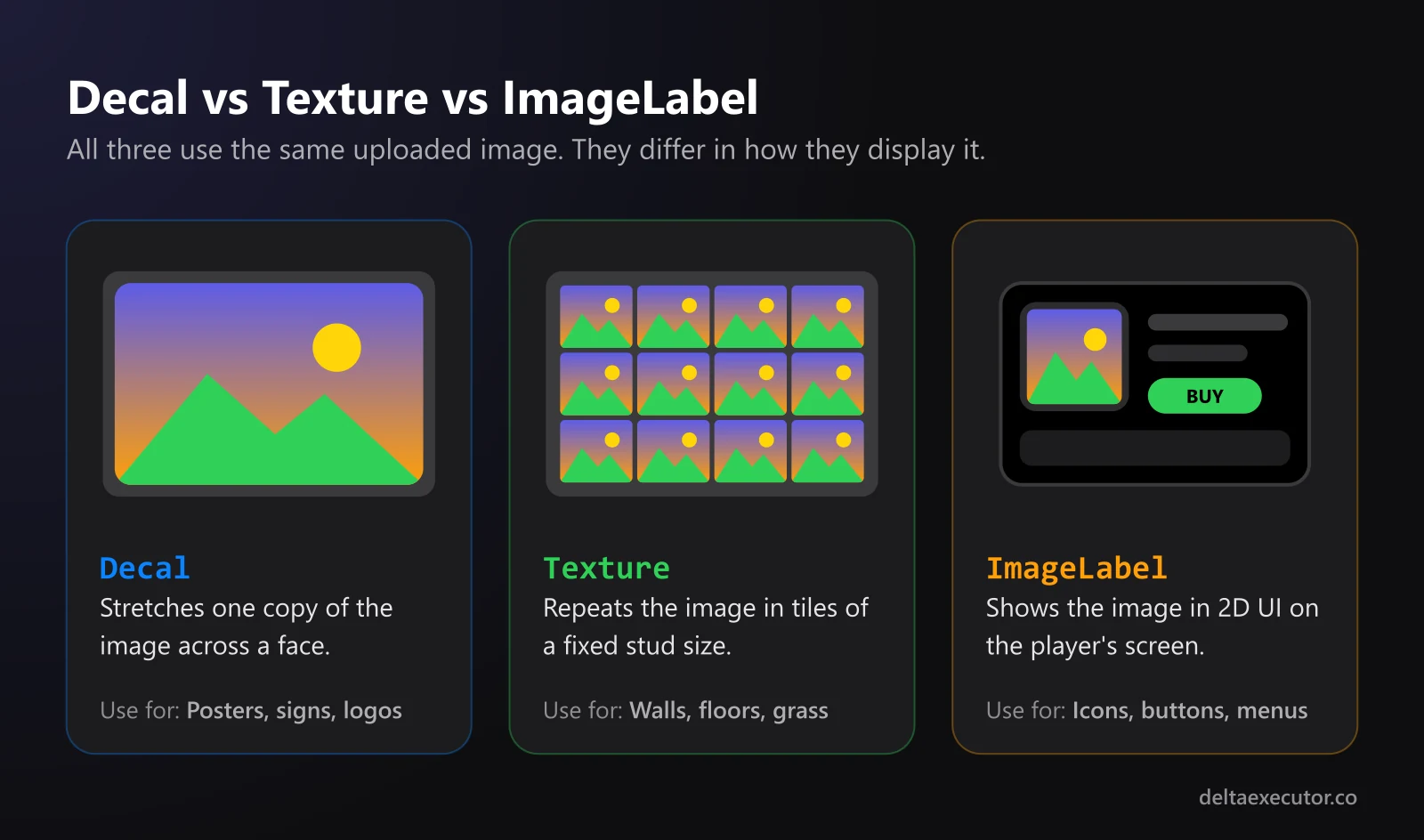
Image Requirements Before You Upload
| Requirement | Detail |
|---|---|
| Formats | .png, .jpg, .gif, .tga or .bmp |
| Maximum dimensions | Under 8000×8000 pixels |
| Maximum file size | 20 MB per file through Roblox's upload API |
| Privacy | Private by default |
| Moderation | Required, and review generally takes a few hours |
Those are hard limits, but you rarely need anything close to them. Bigger images use more memory, and Roblox streams textures at the quality each object needs, so oversized files mostly cost loading time. These working sizes are a good default:
| Asset | Suggested size | Format |
|---|---|---|
| Shop or inventory icon | 512×512 | PNG with transparency |
| Decal (poster, sign) | 1024×1024 or 1024×512 | PNG or JPG |
| Tileable texture | 512×512 or 1024×1024 | PNG or JPG |
| Loading screen | 1920×1080 | JPG |
Two more things to know. If you publish while an image is still in moderation, players won't see it until it's approved. And an image ID in the rbxassetid:// format works across all of your games, so you can reuse one upload everywhere.
Getting the Art: Draw, Commission or Generate
Draw It Yourself
Free tools like Krita and the browser-based Photopea are enough for icons, signs and simple textures. Pixel art and flat cartoon styles are the easiest to make look good with little practice.
Commission an Artist
For a signature look, such as your main character's portrait or a set of rare-item icons, an artist is worth the money. Agree on a price per asset and get written permission to use the art in your game.
Generate It With AI
If you need a lot of assets fast, or you just can't draw, an AI image generator gets you most of the way. One option is Anyscene, an AI image generator with several features that fit game art well:
- Text-to-image with 50+ styles, from cartoon and anime to 3D render, so you can match your game's look
- Aspect ratio controls for square icons and 16:9 loading screens
- Image-to-image with up to five reference images, which helps keep a set of icons in one consistent style
- A background remover for cutting icons out onto a transparent background
- An upscaler for sharpening a design you like before you upload it
At the time of writing, new accounts get 40 free credits, valid for 30 days, which covers about 20 standard images. Anyscene's terms state that you keep full ownership and commercial usage rights to what you generate, which matters if your game sells game passes or developer products.
Prompt Ideas for Game Assets
| Asset | Example prompt | Tip |
|---|---|---|
| Shop icon | Single glowing crystal sword, cartoon game icon, thick outline, centered, plain white background | Remove the background after |
| Floor texture | Seamless tileable texture of mossy stone bricks, top-down view, flat even lighting | Check the seams before uploading |
| Poster decal | Retro arcade poster for a robot fighting tournament, bold colors, blocky toy-like characters | Add any text yourself |
| Loading screen | Wide view of a floating island city at sunrise, stylized low-poly 3D look, empty sky at the top | Leave room for your game title |
| Horror decal | Cracked concrete wall with dark stains and scratch marks, grainy, dim light | Lower the Transparency slightly to blend it in |
A few habits make AI art work much better in Roblox:
- Ask for flat, even lighting on textures. Shadows baked into the image look wrong once Roblox's own lighting and day-night cycle are applied.
- Add text yourself. AI-generated lettering is often misspelled. Leave a blank area and add the words in an image editor.
- Fix seams with an offset check. Shift a texture by half its width and height (in Photoshop or Photopea, Filter > Other > Offset). Any visible line through the middle will show up as a seam in your game.
- Build a style anchor. Make one icon you love, then use it as a reference image for the rest of the set so they look like they belong together.
- Never generate other games' characters or brand logos. Roblox removes assets that infringe someone else's intellectual property, and repeated strikes put your account at risk.
Using Your Images in Studio
Once your image is uploaded and approved:
- Decal: Insert a
Decalinto a part, pick the side with theFaceproperty, and set the image inColorMapContent. - Texture: Insert a
Texturethe same way, then setStudsPerTileUandStudsPerTileVto the tile size in studs. A value of 8 means each tile covers 8×8 studs. - UI image: Insert an
ImageLabelorImageButtoninto aScreenGuiand set itsImageproperty to the asset ID.
Use Color3 to tint an image and Transparency to make the whole thing see-through. Tinting one grayscale texture in several colors saves you from uploading near-identical copies.
Animating a Texture
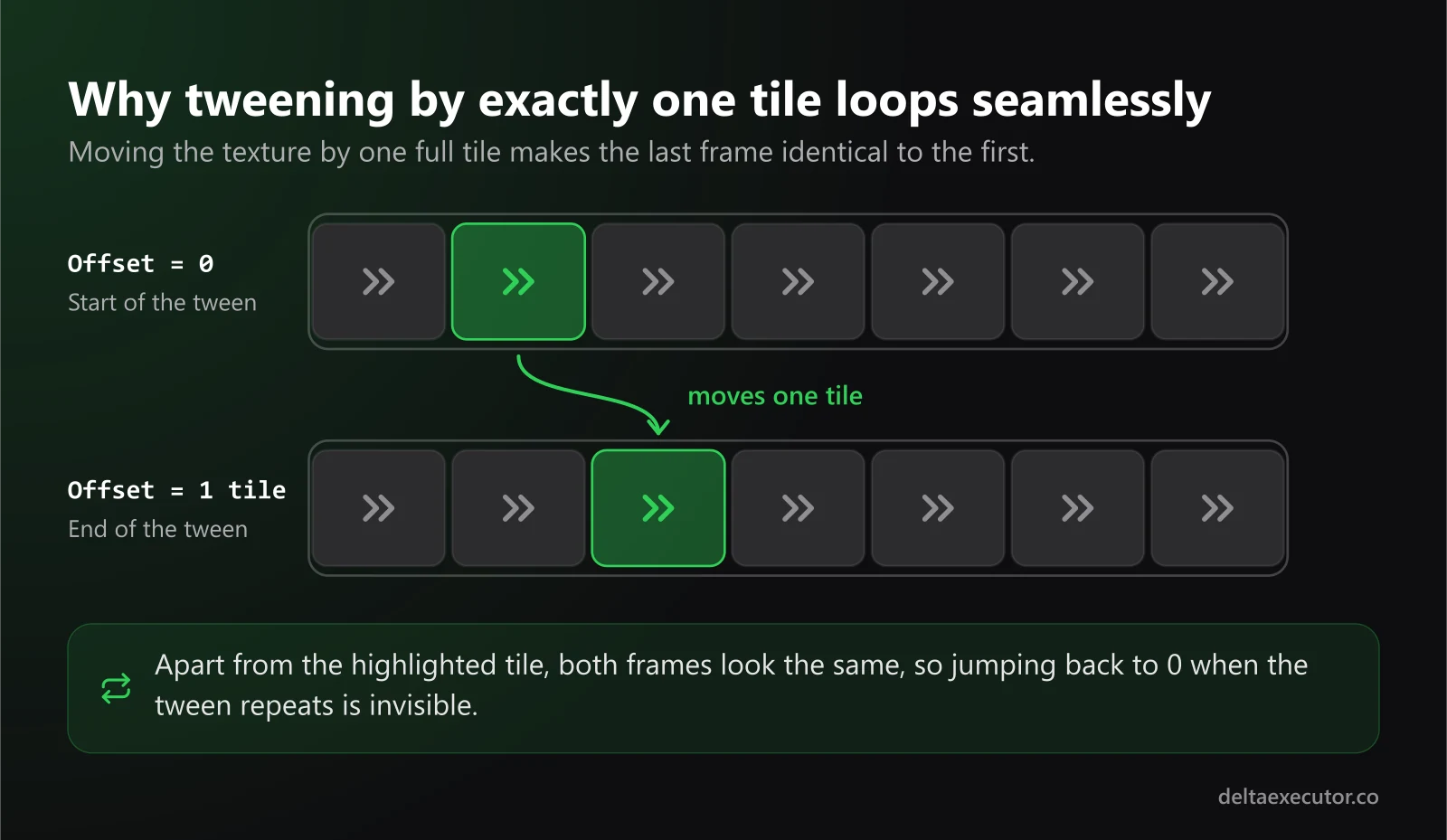
Textures can move, which is perfect for conveyor belts, flowing water, scrolling fog or a sci-fi energy wall. Tween the texture's offset by exactly one tile and loop it:
-- LocalScript in StarterPlayer > StarterPlayerScripts
local TweenService = game:GetService("TweenService")

local belt = workspace:WaitForChild("ConveyorBelt")
local texture = belt:WaitForChild("Texture")

local tween = TweenService:Create(
	texture,
	TweenInfo.new(2, Enum.EasingStyle.Linear, Enum.EasingDirection.InOut, -1),
	{ OffsetStudsU = texture.StudsPerTileU }
)
tween:Play()
Moving by exactly one tile makes the loop seamless, because the end position looks identical to the start. Running it in a LocalScript keeps the motion smooth for each player instead of sending updates from the server. Change the duration to speed it up or slow it down, and tween OffsetStudsV instead to scroll in the other direction.
For a layered effect like drifting fog, put two semi-transparent textures on the same face and scroll them at different speeds.
Keeping Performance in Check
- Reuse images. Ten parts sharing one texture ID cost far less than ten different textures.
- Prefer separate textures over atlases. Roblox's docs note that streaming loads an entire atlas at the resolution needed for any one image in it.
- Don't upload at 4K "just in case." For most surfaces, 1024×1024 is plenty.
Frequently Asked Questions
Can I use AI-generated images in my Roblox game?
Yes, as long as they pass moderation and you have the rights to use them. Check the generator's terms; some tools, Anyscene among them, give you ownership and commercial usage rights to what you create.
Why isn't my decal showing up?
The image is probably still in moderation, or the decal is on a face you can't see. Right-click the part and choose Show Orientation Indicator to check which side is which.
Why does my wall texture look stretched or blurry?
You're likely using a Decal instead of a Texture, or StudsPerTileU and StudsPerTileV are too large. A low-resolution source image will also blur on big surfaces.
How do I make a decal with a transparent background?
Upload a PNG that has transparency, such as an icon you've run through a background remover. To make the entire image see-through instead, raise the decal's Transparency property.
Can I upload pictures of characters from other games?
No. Roblox removes images that infringe intellectual property, and repeated violations can get your account moderated. Create original characters instead.
The Bottom Line
Custom 2D art is one of the fastest ways to make a Roblox game look like it's yours. Pick the right object for each job, keep images at sensible sizes, and build a consistent style across your icons, signs and textures. Then add a little motion with animated textures, and your world will feel noticeably more alive.
Finishing your game's look and feel? Learn how to design an icon and thumbnails that get clicks, give your world original music, and bring NPCs to life with voice acting.