
Walk up to an NPC in most Roblox games and you get a text box. Walk up to one in a polished story or horror game and the character actually talks to you. That single difference makes a world feel alive, and it is far easier to add than most solo developers think.
This guide covers where voice lines make the biggest impact, three ways to get them on any budget, the Luau code to play them with subtitles, and how to give players lines in their own language.
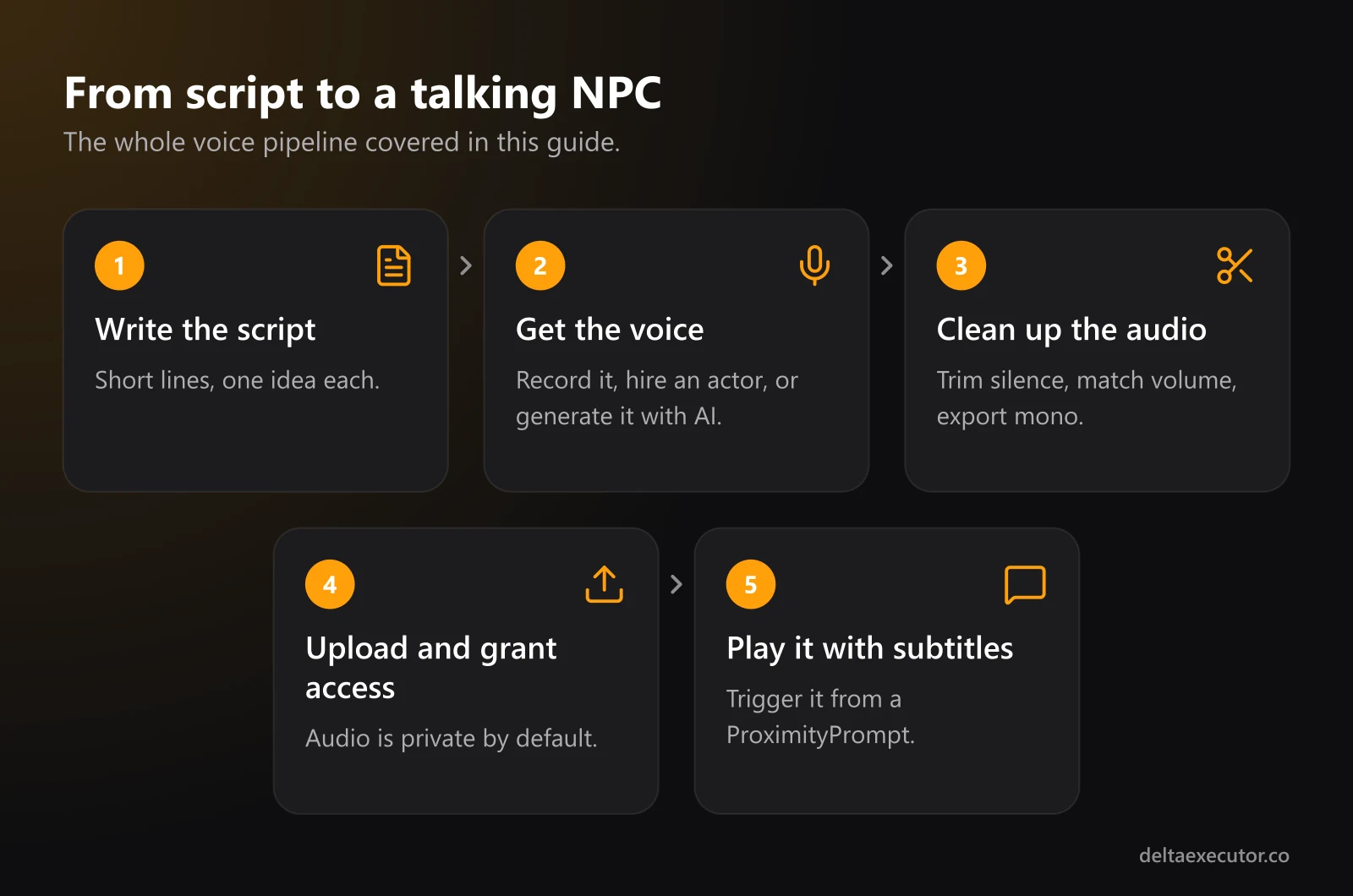
Where Voice Lines Make the Biggest Difference
You don't need to voice every character. Put voice where players pay the most attention.
| Game type | What to voice | Why it helps |
|---|---|---|
| Story games | Narrator, main characters, chapter intros | Carries the plot without walls of text |
| Horror | Whispers, radio messages, the monster | Sound builds tension better than visuals alone |
| Tutorials | The guide NPC who explains controls | Many players skip tutorial text |
| Tycoons and simulators | Shopkeeper greetings, upgrade announcements | Gives repeated actions a reward feel |
| Obbies | Checkpoint and stage announcements | Marks progress and breaks up long runs |
Writing Lines Players Actually Hear
Players move fast in Roblox. Long speeches get interrupted the moment someone walks away or jumps to the next stage.
- Keep lines short. One or two sentences, roughly three to six seconds of audio.
- Write for the ear. Read every line out loud before you record it. If you stumble, rewrite it.
- One idea per line. "Press E to open the shop" works. A paragraph explaining the whole economy doesn't.
- Always pair voice with text. Some players play muted, some are hard of hearing, and many play on phones in public.
Keep a simple script sheet so nothing gets lost between writing, recording and uploading:
| Line ID | Character | Line | File name |
|---|---|---|---|
| shop_01 | Shopkeeper | "Welcome! Need a better pickaxe?" | shop_01_greeting.mp3 |
| shop_02 | Shopkeeper | "Come back when you've got more coins." | shop_02_no_coins.mp3 |
| tut_01 | Guide | "Press Space to jump over the gap." | tut_01_jump.mp3 |
Three Ways to Get Voice Lines
1. Record Them Yourself
It's free and you control every take. A USB microphone, a quiet room with soft furnishings, and Audacity's noise reduction are enough for clean dialogue. Ask friends to voice side characters so every NPC doesn't sound like you.
2. Hire Voice Actors
For a main character or narrator, a real performance is hard to beat. Voice acting communities regularly post casting calls for indie games. Agree on a price per line, and get written permission that covers using the recordings in your game.
3. Generate Them With AI
If you need dozens of lines, several distinct characters, or multiple languages, AI voice generation is the fastest route. One option is AnyVoice, an AI voice generator and voice cloning tool. You can type a line and pick a voice from its library, or clone your own voice from a short sample, then download the result as MP3, a format Roblox accepts directly.
A few details worth knowing before you start:
- Voice samples for cloning can be 15 seconds to 4 minutes long, in MP3, M4A or WAV, under 20 MB, with one clear voice.
- Pricing is per character. At the time of writing, new accounts get 5,000 free credits, and one character costs one credit. The shopkeeper greeting above is 31 characters, so it costs 31 credits. At an average of 60 characters per line, the free credits cover roughly 80 lines.
- Commercial use depends on your plan. If your game sells game passes or developer products, check that your plan covers commercial use.
- You must be 18 or older (or the age of majority where you live) to use the service under its terms. Younger developers should ask a parent or guardian.
The Rules for Cloning Voices
Voice cloning is powerful, which is why the rules are strict:
- Clone your own voice freely. That's the simplest and safest option.
- Anyone else needs to give explicit consent. A friend voicing a character should agree, ideally in writing, before you clone their voice.
- Never clone famous people. That includes celebrities, YouTubers, streamers and other players. AnyVoice's terms prohibit it, and Roblox's Community Standards prohibit impersonating other people.
Preparing and Uploading Your Voice Files
Voice lines follow the same upload rules as any Roblox audio: under 20 MB, under 7 minutes, 48 kHz or lower, and in .mp3, .ogg, .wav or .flac format. We cover the full requirements in our guide to making and uploading your own Roblox music.
A few tips specific to dialogue:
- Mono is fine. Speech doesn't need stereo, and mono keeps files small.
- Trim the silence at the start of each file so the line plays the instant it's triggered.
- Match volume across lines. Normalize everything to the same level so no character is suddenly louder than the rest.
- Use bulk import. Studio's Asset Manager can upload many files at once, which saves time with large scripts.
- Grant access. Uploaded audio is private by default. If your game belongs to a group, upload under the group or grant the experience permission.
Every voice line counts as one audio asset. ID-verified accounts can upload 2,000 free audio assets per 30 days and unverified accounts get 100, so verified accounts have plenty of room even for voice-heavy games.
Playing a Voice Line When a Player Talks to an NPC
The setup below plays a line and shows a subtitle bubble when a player interacts with an NPC. In Studio, add a ProximityPrompt to the NPC's Head part first, then place this LocalScript in StarterPlayer > StarterPlayerScripts:
local TextChatService = game:GetService("TextChatService")

local npc = workspace:WaitForChild("Shopkeeper")
local head = npc:WaitForChild("Head")
local prompt = head:WaitForChild("ProximityPrompt")

local line = Instance.new("Sound")
line.SoundId = "rbxassetid://YOUR_ASSET_ID"
line.RollOffMaxDistance = 40
line.Parent = head

prompt.Triggered:Connect(function()
	if line.IsPlaying then
		return
	end
	line:Play()
	TextChatService:DisplayBubble(head, "Welcome! Need a better pickaxe?")
end)
Because this runs in a LocalScript, each player hears their own conversation. Two players talking to the shopkeeper at the same time won't hear the line twice over each other. Parenting the sound to the head makes it positional, and RollOffMaxDistance controls how far away it can still be heard.
If the subtitle bubble doesn't appear, check that bubble chat is enabled under TextChatService > BubbleChatConfiguration. For a deeper look at why client-side code only affects one player, see our guide to advanced script execution techniques.
Localizing Voice Lines for More Players
Roblox has huge player bases outside the English-speaking world, including Brazil and much of Latin America. Translated text is a good start, but hearing a character speak your language is a much stronger signal that a game was made with you in mind.
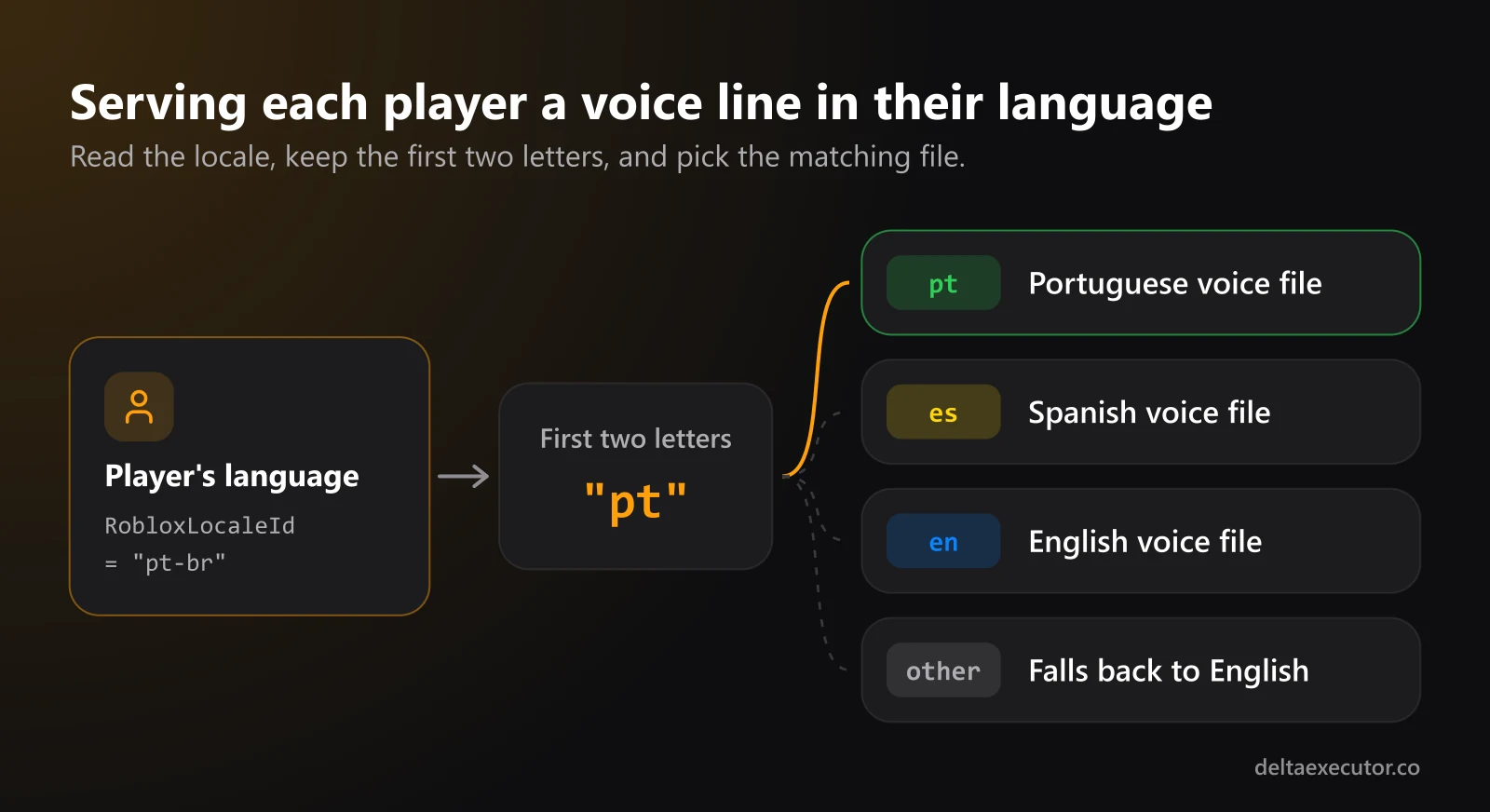
The simplest approach is to upload one file per language and pick the right one based on the player's Roblox language setting. Add this to the LocalScript above, before the Triggered connection:
local LocalizationService = game:GetService("LocalizationService")

local voiceIds = {
	en = "rbxassetid://ENGLISH_ID",
	pt = "rbxassetid://PORTUGUESE_ID",
	es = "rbxassetid://SPANISH_ID",
}

local language = string.sub(LocalizationService.RobloxLocaleId, 1, 2)
line.SoundId = voiceIds[language] or voiceIds.en
Matching on the first two letters of the locale keeps the code simple: Brazilian and European Portuguese both get the Portuguese file, and any language you haven't recorded falls back to English. Remember to translate the subtitle text as well.
If you cloned your own voice, you can generate the same character in several languages so it keeps one recognizable voice across every version of your game. Machine-translated lines can sound unnatural, though, so have a native speaker check the script before you generate the audio.
Frequently Asked Questions
Can I use AI-generated voices in a Roblox game?
Yes, as long as they follow the same rules as any other upload. They must pass moderation, and you need the rights to use them, which depends on the generator's terms and your plan.
Can I clone a famous YouTuber's voice for my NPC?
No. Cloning someone's voice without their consent breaks AnyVoice's terms and Roblox's rules on impersonation, and it can get your game or account moderated. Clone your own voice, or use a library voice.
Do I still need subtitles if my NPCs talk?
Yes. Many players play muted or on mobile in public, and some are hard of hearing. Subtitles also help players whose first language isn't the one you recorded.
Why does my voice line play in Studio but not in the live game?
Usually the audio is still in moderation, or it belongs to your personal account while the game belongs to a group. Grant the experience access on the asset's permissions page, or re-upload under the group.
Can I use voice-overs in my Roblox video thumbnails?
No. Roblox doesn't allow narration or voice-overs in video thumbnails, but they work well in teasers for TikTok and YouTube Shorts. Our guide on promoting your Roblox game covers what's allowed where.
The Bottom Line
Voice acting used to be something only big studios could afford. Today a solo developer can voice a whole cast by recording friends, hiring an actor for the key role, or generating lines with AI. Keep lines short, pair every one with subtitles, respect consent when cloning, and add a second or third language once the first one works.
Building out your game's audio? Start with original background music, then learn how to promote your game once it sounds right. More guides are on our blog.